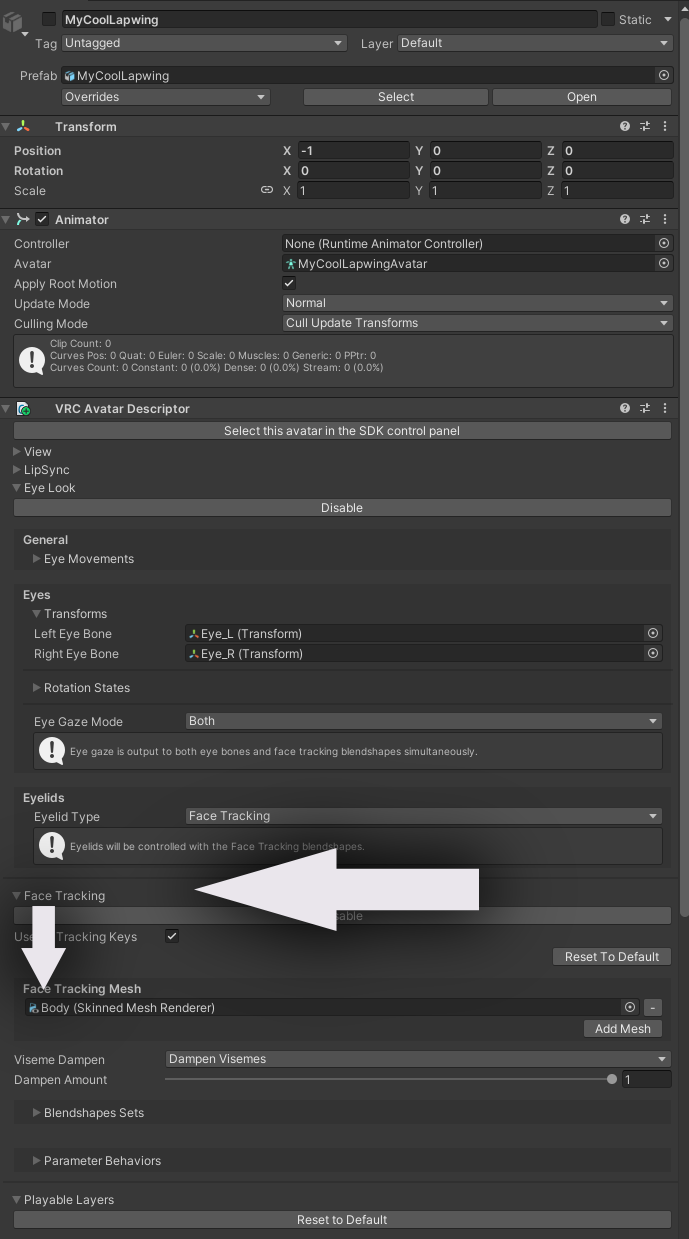
Upgrade face tracking version
Every so often I will revisit some of my face tracking add-ons to keep them up to date with my newer findings, here's a guide on how to update
WARNING
If you are upgrading to a native setup DO NOT CLICK Auto-Fill Blendshapes Please make sure your are using version 3.10.6 of the VRCSDK or newer & are using VRCFT from steam
Standard Prefab
If you've used the prefab I provide, click here
Create prefabs of your avatar(s)
Drag and drop your avatar(s) in your unity file explorer and click Create Original Prefab if a dialog box opens
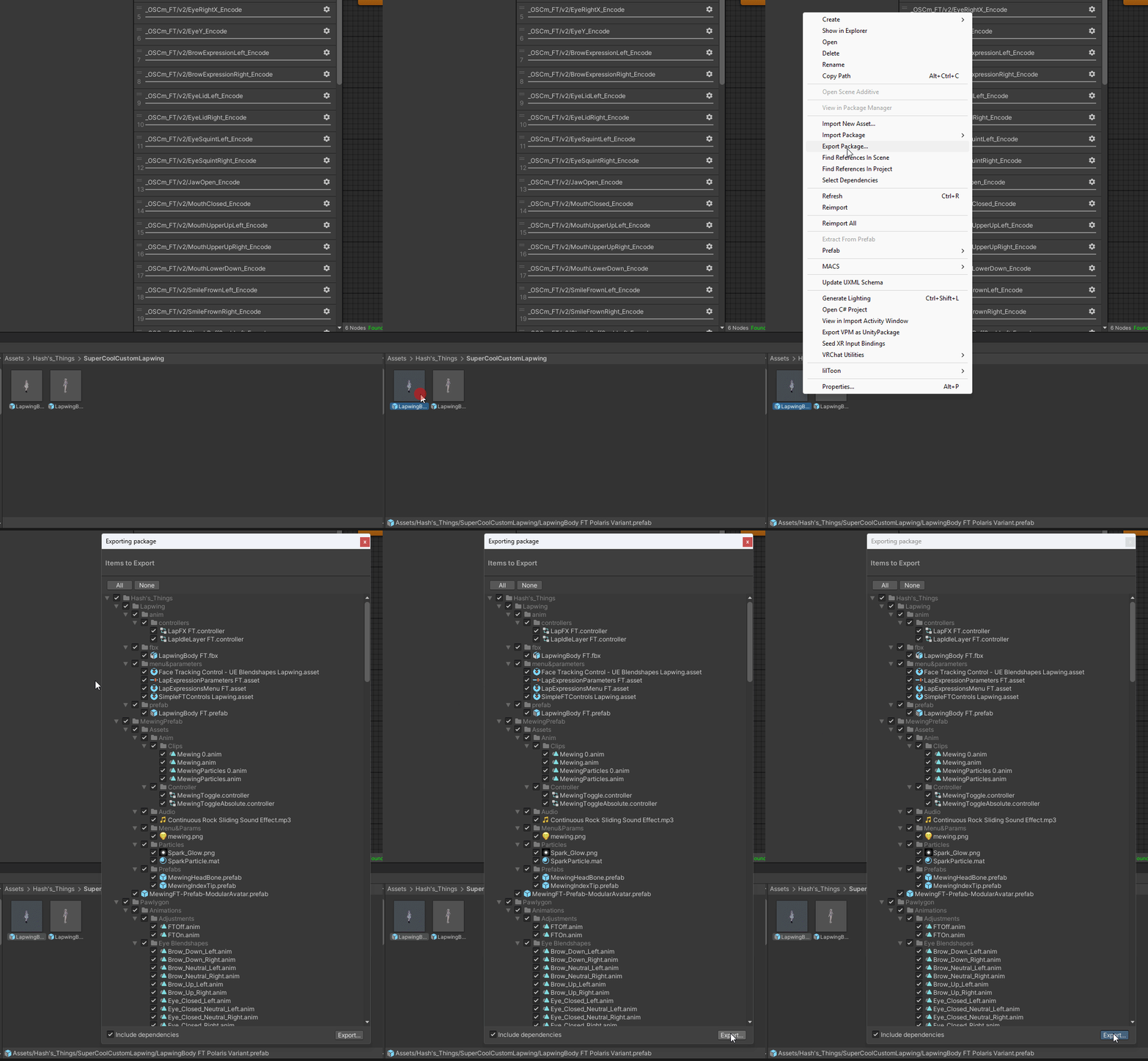
Back it up as a UnityPackage
Right click on your prefab, click Export Package ... and then Export on the new window that appears
Delete the fbx
delete the folder Hash's_Things/AvatarName/fbx
Delete the patcher folder
delete the folder Hash's_Things/AvatarName/Patcher
Import the new face tracking package in your project
Drag and drop the UnityPackage file you've downloaded from Booth or Kofi above your unity window and click Import at the bottom of the new window that apears
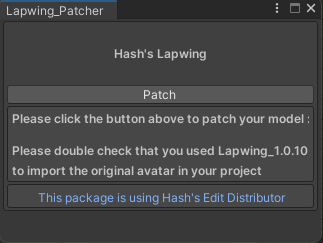
Patch the model like you did the first time
- Go at the top of your Unity window and click on
Tools->Hash->AvatarName

Some will have multiple options for different prefabs, you're free to do the one you want or all of them
- Click the
Patchbutton on the window that opens
Make sure you are using the same animation controllers as the base FT prefab
- Navigate to
Hash's_Things/AvatarName/prefabs - Right Click → Properties
- Scroll down and look at the animation controllers
- Select your avatar
- Make sure that the animation controllers and parameters are matching
You're done!
Custom Avatar
If you've unpacked the prefab I provide or applied it to a custom avatar, click here
Create prefabs of your avatar(s)
Drag and drop your avatar(s) in your unity file explorer and click Create Original Prefab if a dialog box opens
Back it up as a UnityPackage
Right click on your prefab, click Export Package ... and then Export on the new window that appears
Delete the fbx
delete the folder Hash's_Things/AvatarName/fbx
Delete the patcher folder
delete the folder Hash's_Things/AvatarName/Patcher
Import the new face tracking package in your project
Drag and drop the UnityPackage file you've downloaded from Booth or Kofi above your unity window and click Import at the bottom of the new window that apears
Patch the model like you did the first time
- Go at the top of your Unity window and click on
Tools->Hash->AvatarName
Some will have multiple options for different prefabs, you're free to do the one you want or all of them
- Click the
Patchbutton on the window that opens
Copy Unity Setup
Drag and drop the face tracking prefab in your scene
Right click on it
Click properties
Put the second inspector window side by side with the original one
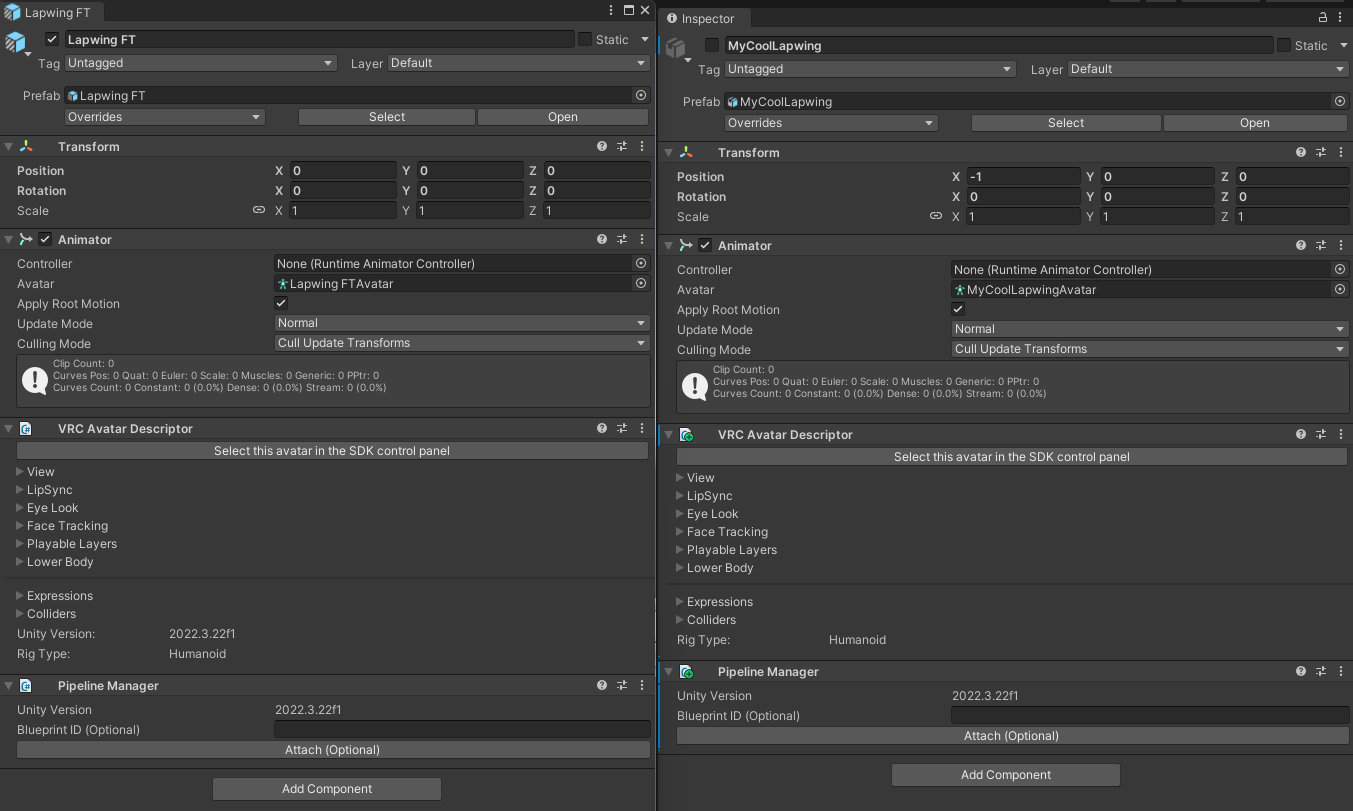
- Right click on the avatar descriptor component of the FT prefab
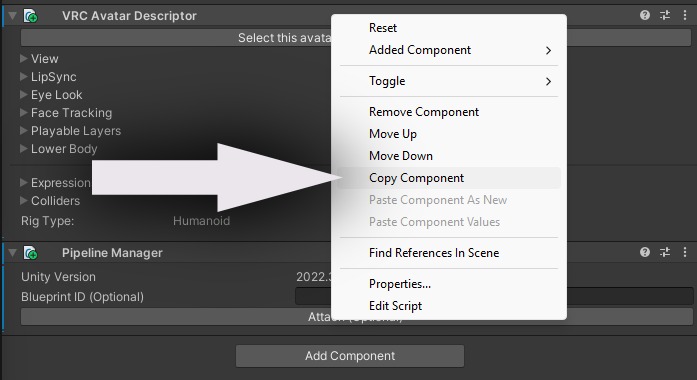
Click
Copy ComponentSelect your prefab
Right click on your avatar's descriptor component
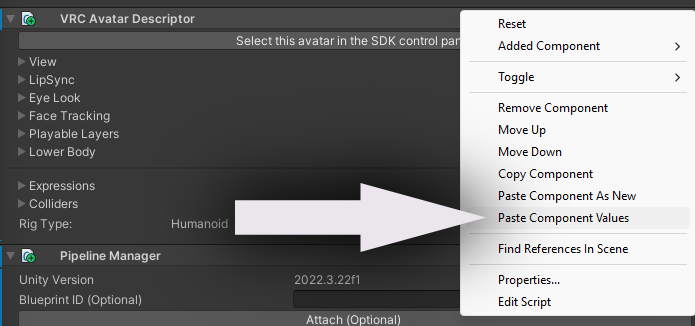
Click
Paste Component ValuesDevelop the
Face Trackingsection
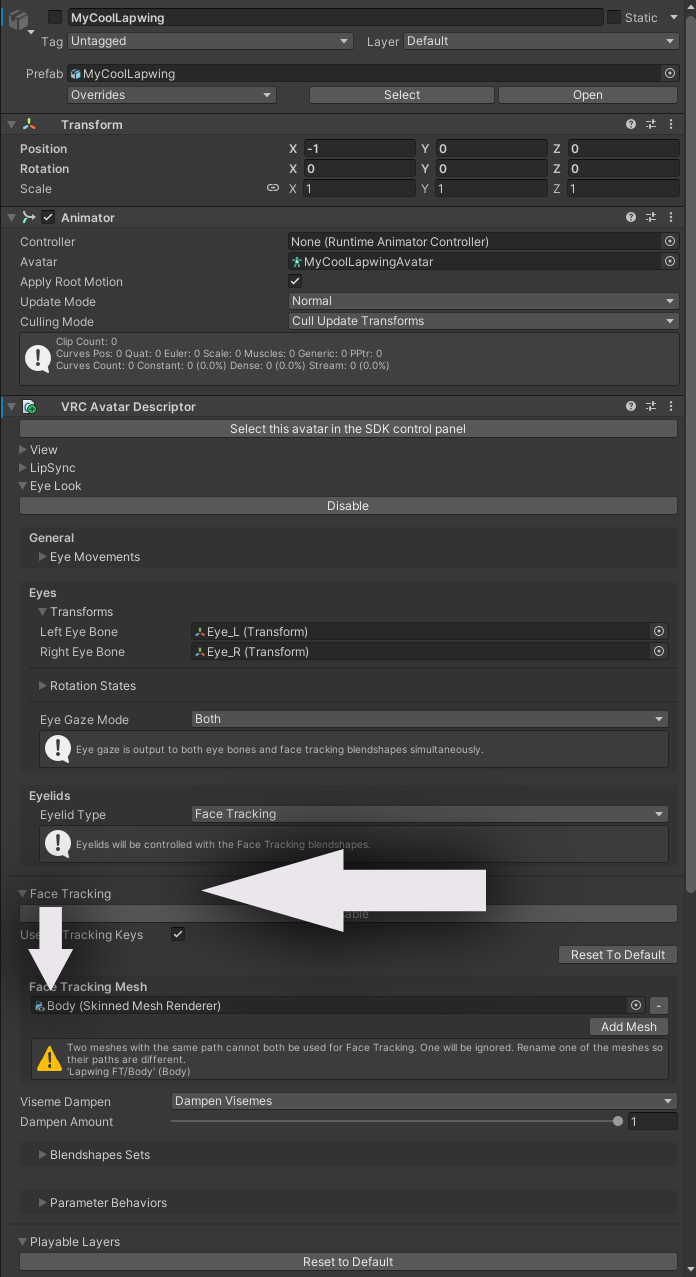
- Assign the same meshes as the ones in the face tracking version